


Game Interface
After creating your character and logging in to the game, you'll see a screen with different interface elements.
Client Interface
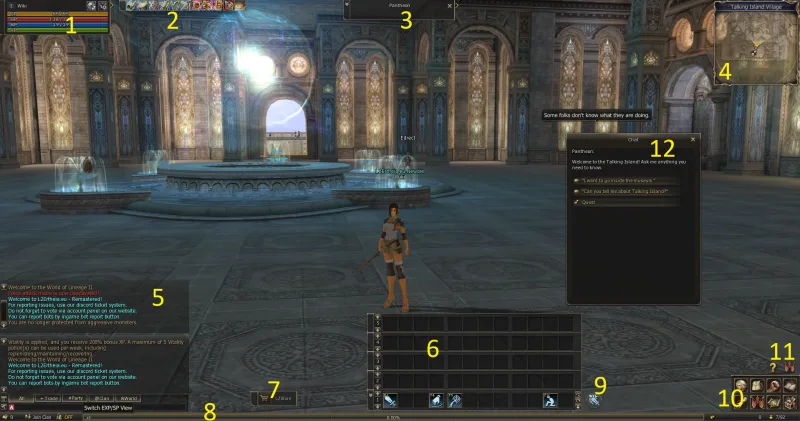
| Interface Element | Image |
|---|---|
| 1. Status Window | 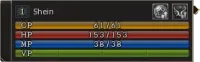 |
| 2. Buffs / Debuffs |  |
| 3. Target Window | 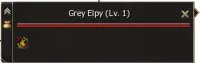 |
| 4. Radar Window | 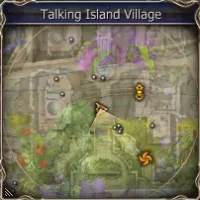 |
| 5. Chat Window | 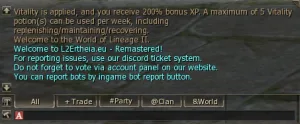 |
| 6. Shortcut Bar | 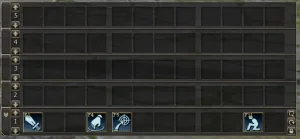 |
| 7. L2Store |  |
| 8. System Panel |  |
| 9. Combat Mode |  |
| 10. Menu Window | 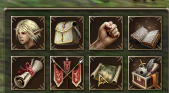 |
| 11. Notifications Icons |  |
| 12. NPC Dialogue | 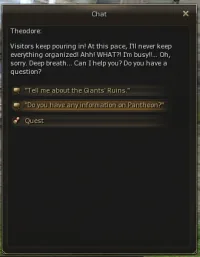 |
Status Window
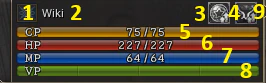
- Level. Current Character Level. Max character level for main/dualclass is 99. Max subclass level is 80.
- Character Name.
- Vote Reward. The status of Vote Reward (Active/Inactive)
- Premium Rune. The status of Premium Rune (Active/Inactive)
- CP. The amount of Combat Points (CP). Used during duels and PvP. CP points are deducted first, then HP.
- HP. The amount of health. If HP equals 0, the character is dead.
- MP. The amount of mana. Mana is spent when a character uses skills.
- Vitality. The current level of a character's vitality. For more details, see Vitality.
- Changing window size. Use to stretch the window horizontally.
Buff/Debuff Window
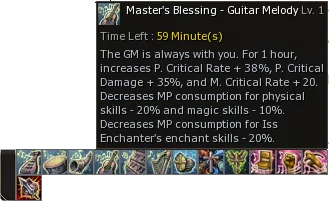
By default, the Buff/Debuff window is displayed to the right of the Status Window, but you can easily move it to a place that is convenient for you. The number of Buff/Debuff types is limited. If you try to get more effects, the last effect in the row will be cancelled and replaced with a new one (it will be placed at the beginning of the row).
- Buffs. Displays buffs. At the beginning, the max amount of buffs is 20. If you learn and develop the Divine Inspiration skill, it can be increased up to 24.
- Toggle Skills. There's no max amount of toggle skills. The icons of toggle skills are displayed after the icons of buffs.
- Songs/Dances. Effects such as songs/dances are displayed. Max 12.
- Debuffs. The debuffs cast upon your character. Max 12.
- Penalties. The penalties your character has. For example, death penalty or exceeding the weight limit.
Target Window
Monster
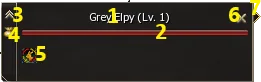
- Mob's name. By the colour of the mob's name, you can approximately tell its level.
- Target's HP.
- More Info Show/Hide. Showing/hiding additional info about the target.
- In-game Drop Calculator
- Additional Info. Race and additional characteristics. Hover your mouse on the icon to read the description.
- Cancel target. Used to cancel the current target. Just like Esc.
- Changing the window size. The target window can be enlarged horizontally.
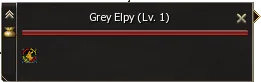
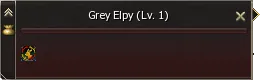
The window will change background color based on target's status - Alive / Dead.
| Alive Status | Dead Status |
|---|---|
 |  |
Player
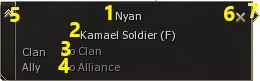
- Target name.
- Target's class.
- Target's clan.
- Target's alliance.
- More Info Show/Hide. Showing/hiding additional info about the target.
- Cancel target. Used to cancel the current target. Just like Esc.
- Changing the window size. The target window can be enlarged horizontally.
The window will change background color based on target's status - Alive / Dead.
| Alive Status | Dead Status |
|---|---|
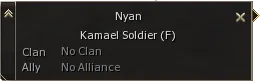 | 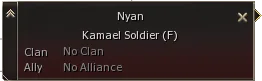 |
Radar Window
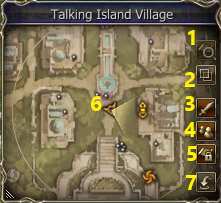
- Maximize/Minimize
- Transparent
- Show Monsters
- Show Party Members
- Fixed Radar
- Current position of player
- My Teleports
Chat Window
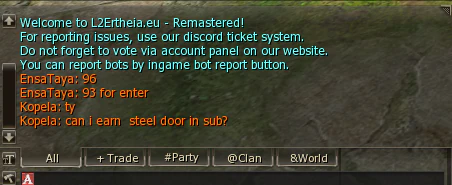
The Chat window is used for communication, to display system messages and to input additional commands.
Shortcut Bar
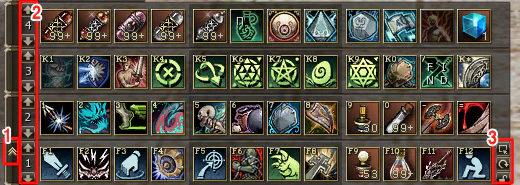
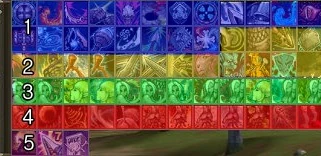
- Adding / closing additional shortcut bars. By default, only one shortcut bar is displayed. When you press this button, you add the second, then the third and the fourth bars; when you press it for the fifth time, the 4 additional bars will be closed. [Alt + E]
- The number of the shortcut bar. There are 10 bars in total, you can use 5 of them at the same time. To toggle to the bar you need, use the switches.
- Shortcut tooltip on/off - when you hover your mouse on any bar slot, you'll see only the name of the skill/item or its detailed description
- Arrange horizontal/vertical - horizontal/vertical display of the bars
- Slot lock/Cancel.
You can read the article Skills about the skills that can be used via the Shortcut Bar.
L2Store
A special in-game shop that allows you to support the L2Ertheia server and receive rewards as a thank you. Donations can be managed through our website.
Menu Window
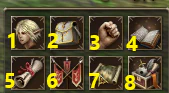
- Character window [Alt + T].
- Inventory [Alt + V].
- Action window [Alt + C].
- Skill window [Alt + K].
- Quest log [Alt + U].
- Clan window [Alt + N].
- Map [Alt + M].
- System Menu [Alt + X].